Script Editor
The Script Editor is where you write, save and manage your own indicators. A saved script appears in every chart's indicator list under My scripts.
Module
Script Editor
How to open
Add Widget ▸ Charting & Analysis ▸ Script Editor
Data source
Scripts are saved to your account
Saved in workspace
Yes
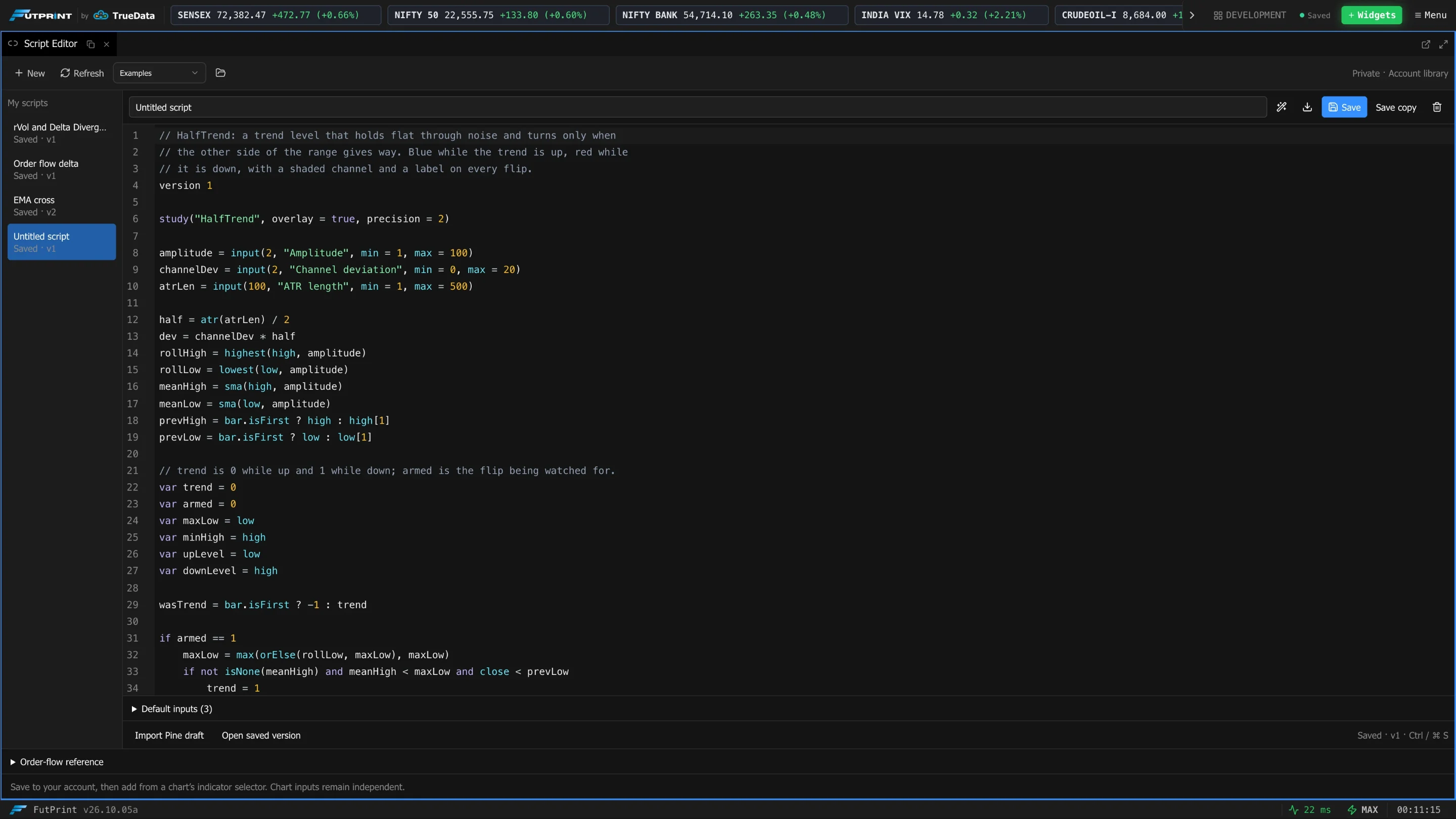
The toolbar
| Control | What it does |
|---|---|
| New | Start a new, untitled script. |
| Refresh | Reload your saved scripts from your account. |
| Examples | Load one of the built-in example scripts as a starting point. |
| Open script file | Open a script from a file on your computer. |
My scripts
The list on the left holds your saved scripts, each with its saved status and version. Click one to open it.
Editing
| Control | What it does |
|---|---|
| Script name | The name shown in the chart's indicator list. |
| Format source | Tidy the indentation and spacing of the code. |
| Download source | Save the script as a file. |
| Save | Save the script to your account (Ctrl/⌘ S). |
| Save copy | Save under a new name, leaving the original unchanged. |
| Delete | Remove the script. |
Below the editor:
- Default inputs lists the inputs the script declares, with their defaults.
- Import Pine draft converts a Pine Script draft into the editor as a starting point; review the result before saving.
- Open saved version returns to the last saved copy.
- Order-flow reference lists the order-flow series a script can read.
Using a script on a chart
- 1Save the script
Scripts must be saved to your account before a chart can use them.
- 2Add it from the chart
On a chart, open Indicators and choose it under My scripts.
- 3Set its inputs
Each chart keeps its own input values, independent of the defaults in the editor.