Finding Symbols
FutPrint covers the Indian markets across the NSE, BSE and MCX exchanges, including indices, equities, futures and options. Wherever you can choose an instrument, you'll use the same search.
Where search appears
- Adding to a Watchlist or Heatmap — the + button opens a search dialog where you can find and add one or many symbols.
- Option Chain — the symbol box in the toolbar searches for tradeable underlyings (indices and stocks that have options/futures).
- Chart — the symbol control swaps the instrument on the current chart.
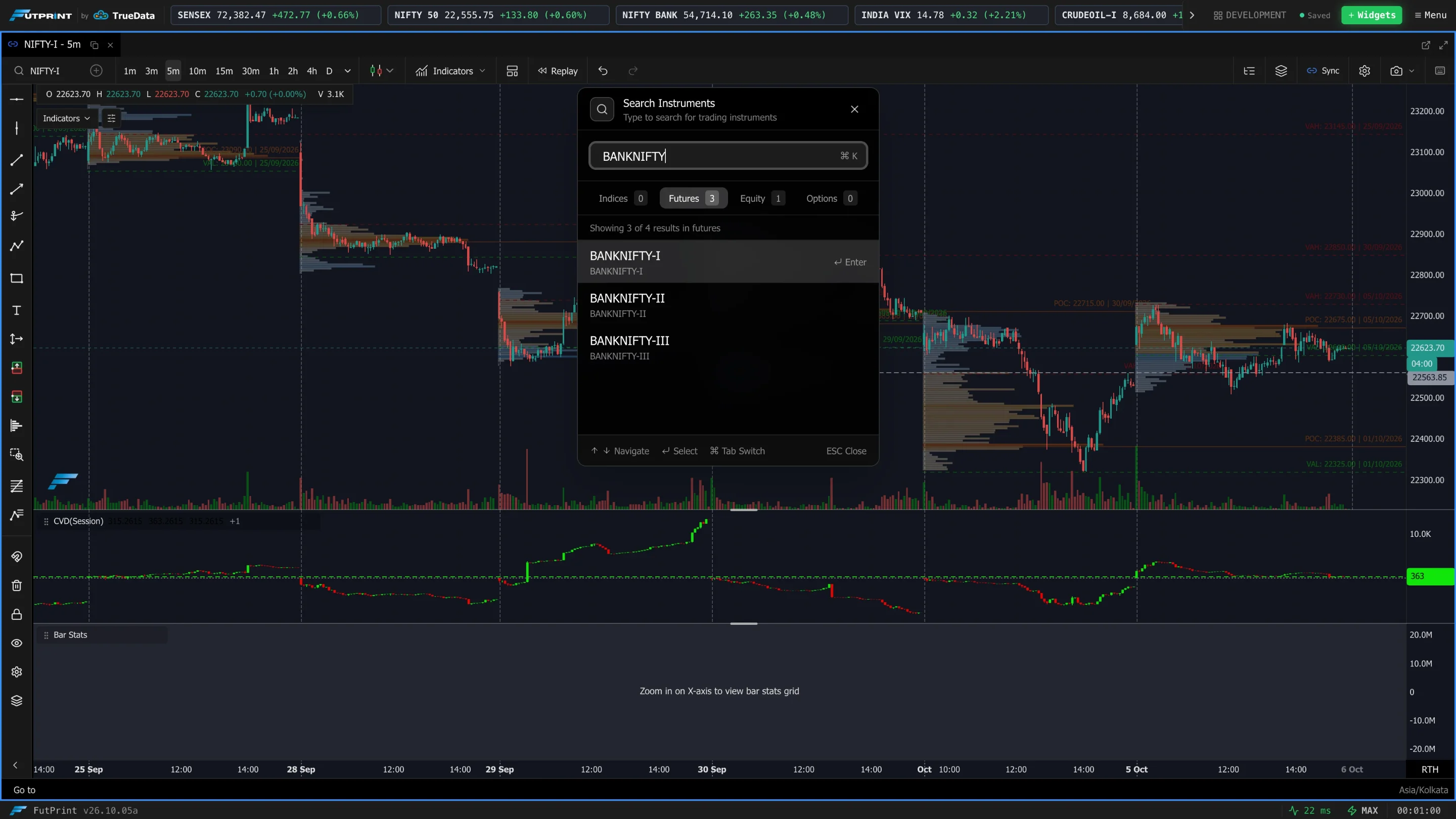
How search behaves
- 1Type at least 3 characters
Search begins once you've typed three or more characters, and updates as you type (it waits a moment after you stop typing so it isn't searching on every keystroke).
- 2Read the result line
Each result shows the symbol, its exchange (NSE / BSE / MCX) and its type — index, equity, futures or option. The same name can appear on more than one exchange.
- 3Select to add or load
Click a result to add it (watchlist/heatmap) or load it (chart/option chain).
Search is filtered to what makes sense for the place you're in. The Option Chain search, for example, only returns underlyings that actually have an option chain (indices and stocks with listed options/futures), so you won't pick something that can't show a chain.
Futures and the underlying
Futures contracts carry a roll suffix such as _I, _II or -I (near, next,
far month). When you load a futures contract into the Option Chain, FutPrint
automatically resolves it to its underlying (e.g. TCS_I → TCS) so the
chain, spot and futures all line up.
In the Watchlist and Heatmap add dialog you can select multiple symbols and add them together, instead of searching one at a time.