Working with Panels
Everything in the terminal happens inside a panel. This page covers adding, arranging, and closing them — the mechanics shared by every module.
Adding a panel
- 1Open the Add Panel menu
Use the Add Panel control in the workspace toolbar. It lists every module you can open.
- 2Pick a module
Choose the module you want — Chart, Option Chain, Watchlist, Heatmap, and more.
- 3The panel opens beside the current one
New panels dock next to your active panel. Drag the tab afterwards to move it wherever you like.
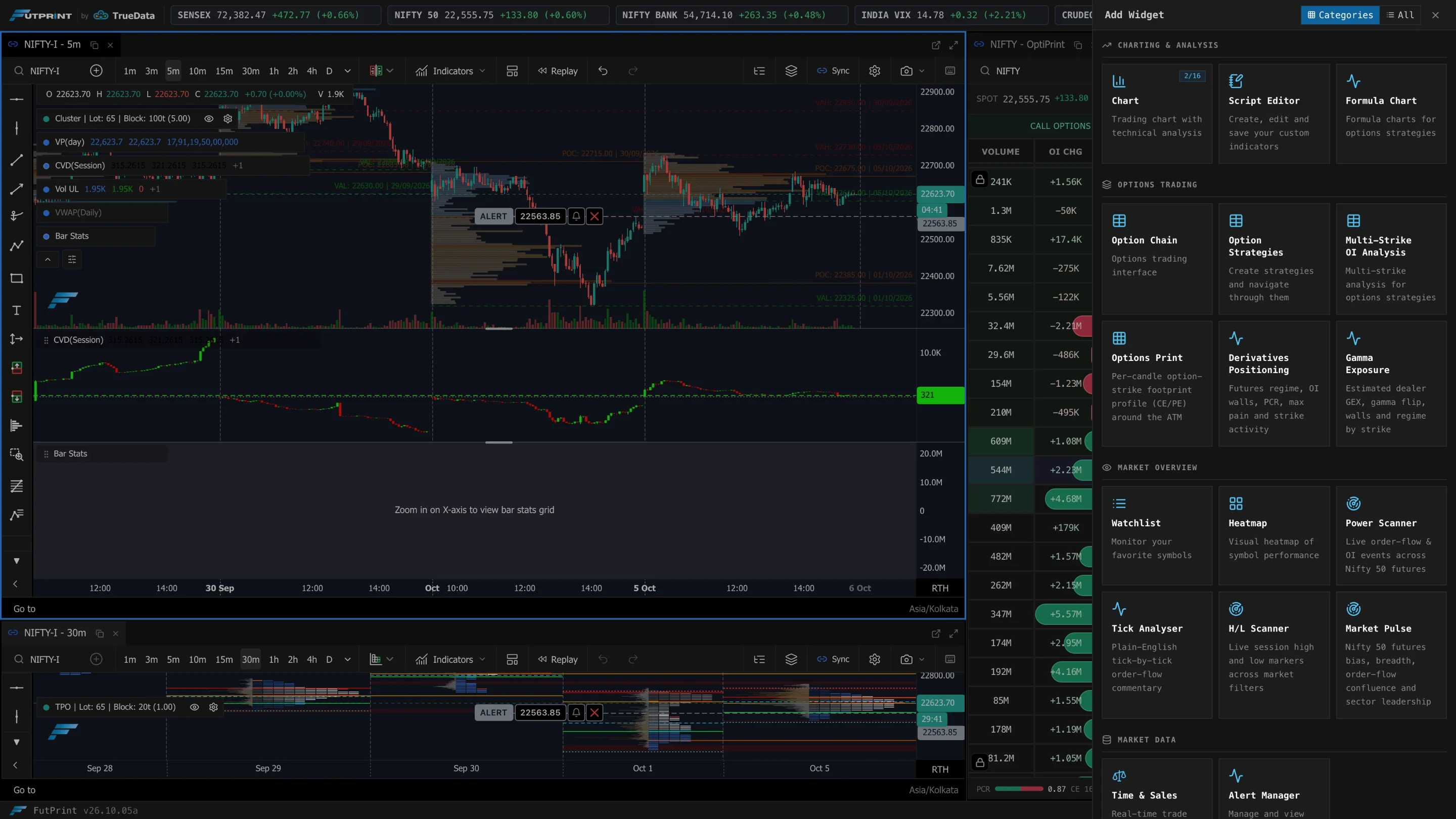
The full set of modules includes:
| Module | Purpose |
|---|---|
| Chart | Price charting and analysis |
| Option Chain | Live CE/PE option chain |
| Watchlist | Streaming table of followed symbols |
| Heatmap | Performance/volume treemap |
| Time & Sales | Tick-by-tick trade tape |
| Depth of Market | Live order-book ladder |
| Order Flow | Footprint / cluster analysis |
| Power Scanner | Market scanner |
| Multi-Strike OI Analysis | Open-interest across strikes |
| Gamma Exposure | Estimated dealer gamma exposure across an option expiry |
| Straddle / Option Strategies | Strategy builders |
| Orders · Positions · Trading · Alerts | Order management & alerting |
| Settings | Terminal preferences |
This guide covers Chart, Option Chain, Watchlist and Heatmap in depth first. The remaining modules are documented progressively.
Opening a panel for a specific symbol
You rarely need to add a blank panel and then search. From most lists you can open a module pre-loaded with the symbol you're looking at:
- Watchlist — hover a row and click the Chart, Option Chain or Time & Sales button, or right-click the row for the same actions.
- Heatmap — hover a tile to get the same quick-open buttons.
- Option Chain — hover a CE/PE cell to open a chart or time & sales for that exact contract, or add it to a watchlist.
/help-assets/getting-started/open-from-watchlist.mp4Arranging panels
- Move: drag a panel's tab and drop it where you want it.
- Split: drop a tab against an edge to put two panels side by side or stacked.
- Stack as tabs: drop a tab onto another panel's header.
- Resize: drag the divider between groups.
Renaming, cloning and closing
Each panel header gives you actions for that panel:
- Rename — give a panel a custom title (handy when you have several charts).
- Clone — duplicate a panel with its current settings.
- Close — remove the panel. Closing the last panel in a group removes the group and reflows the layout.
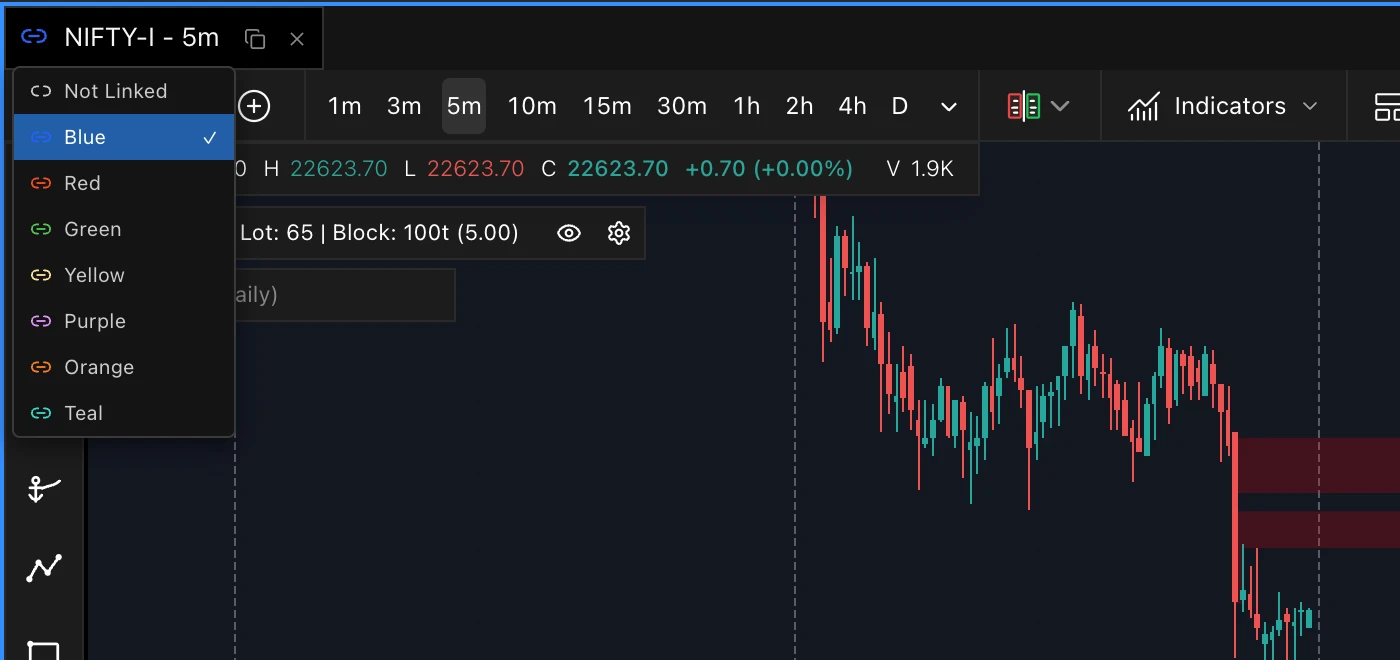
Panels can be linked so that changing the symbol in one updates the others in the same link group — for example, click a symbol in a watchlist and have your linked chart and option chain follow it automatically.
Linking panels
Every panel tab has a Link Panels button (the chain icon). Give two or more panels the same colour and they follow each other's symbol: change the symbol in one and the others switch too. Choose Not Linked to make a panel independent.