Watchlist
The Watchlist Panel lets you build a personalized list of instruments and monitor their real-time quotes at a glance. With quick search, flexible layouts, and hover actions to open related panels like Chart, Option Chain, and Time & Sales, it’s the fastest way to navigate your trading workflow.
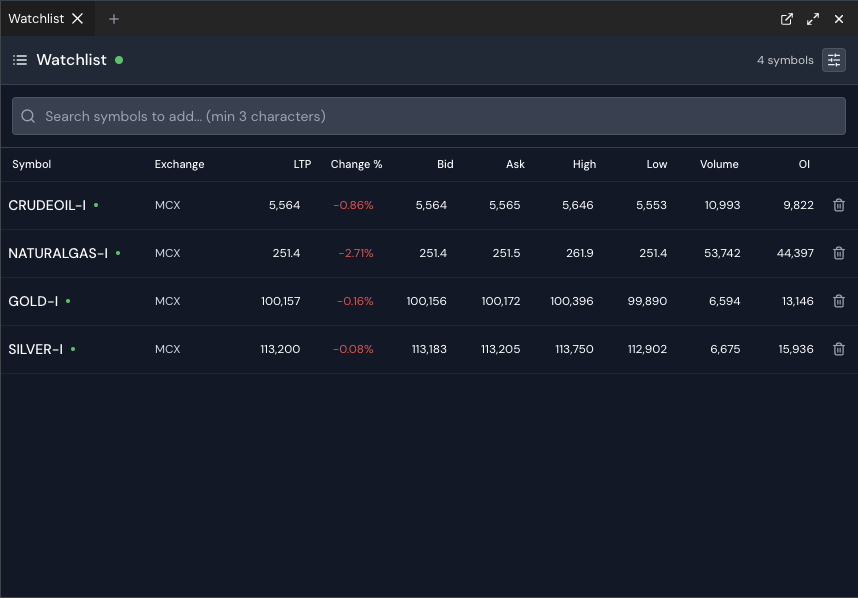
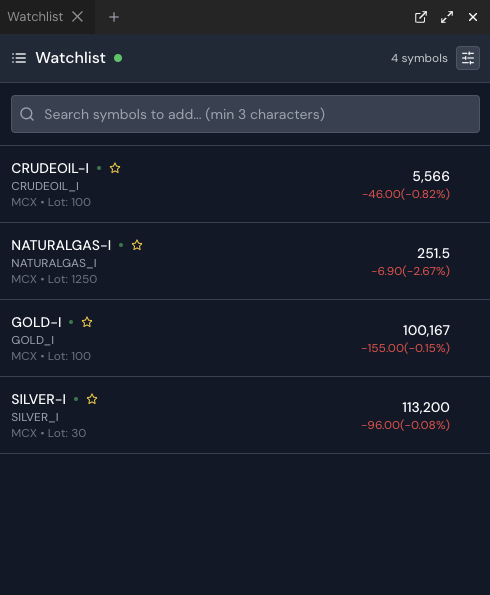
Watchlist panel with compact and table layouts, live indicators, and quick actions
Typical terminal layout: Watchlist panel docked alongside analytics panels
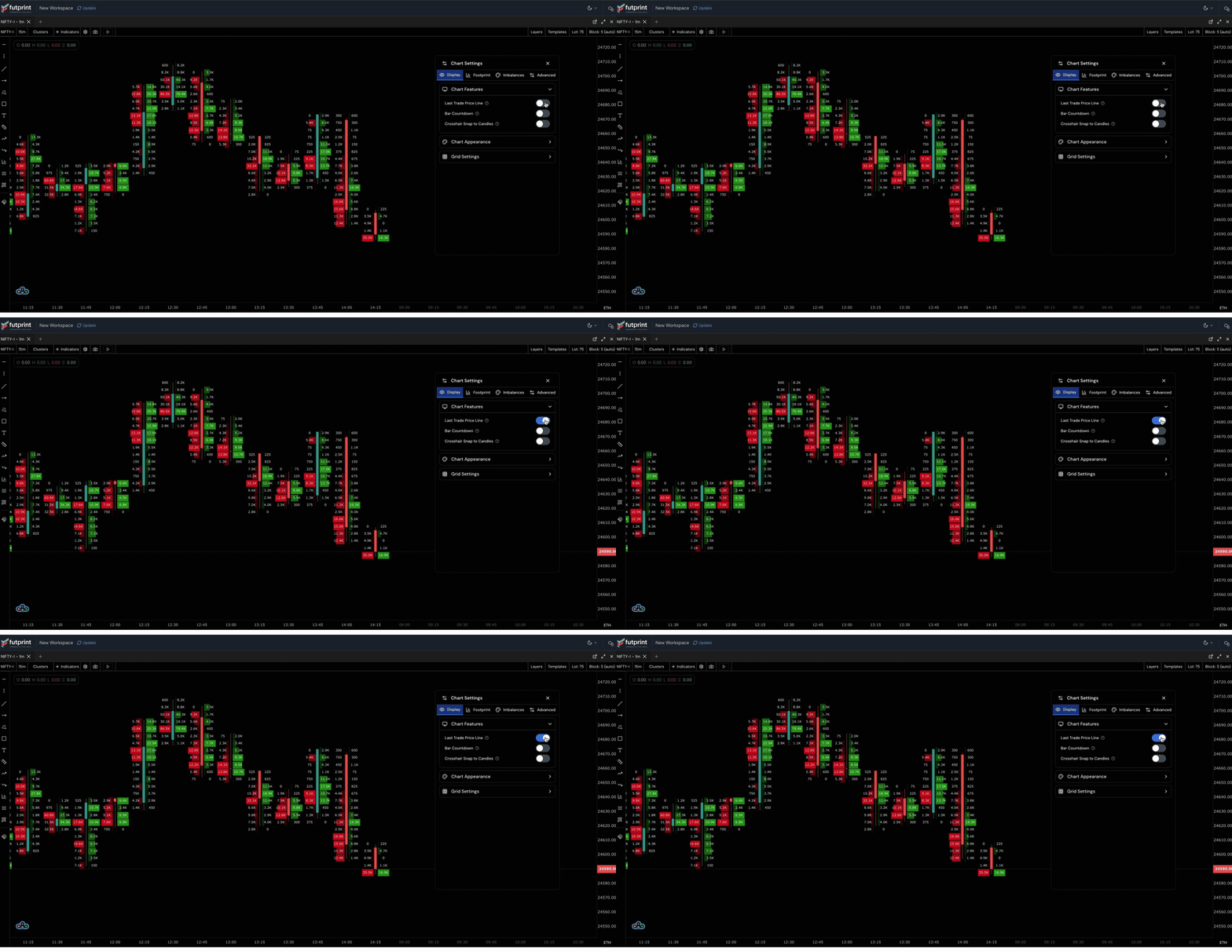
Real-time price updates reflected instantly in the Watchlist
1. Header and Status
- Title and live indicator: A green dot appears when any symbol is receiving real-time data.
- Symbol count: Shows how many instruments are currently in your watchlist.
- Columns & Layout button: Opens layout controls to switch between compact and table modes and manage visible columns.
2. Search and Add Symbols
- Instant search: Start typing in the search box (minimum 3 characters). Results are grouped by instrument type such as Spot/Cash, Futures, Options, Index, and Others.
- Rich result details: See symbol, name, optional strike, expiry, exchange, and lot size.
- Add with one click: Click a result to add it. Items already in your watchlist show a checkmark.
- Dismissal behavior: Clicking outside the search panel closes results.
Tip: You can also filter the current watchlist by typing in the same search box.
3. Layouts and Columns
- Compact mode: A clean, condensed list showing symbol, name, exchange and lot size (if available), plus live price and change.
- Table mode: A grid with configurable columns. Toggle via the Columns & Layout button.
- Configurable columns: Choose from:
- Symbol
- Exchange
- LTP
- Change % (based on previous close)
- Bid / Ask
- High / Low
- Volume / OI
- Reset: Restore defaults any time with Reset Columns.
Note: Column controls are available in table mode. Compact mode always shows a minimal set.
4. Real-Time Data
- Live updates: Each symbol connects to a data stream; a pulsing green dot appears next to live symbols.
- Computed change: Change and Change % are calculated from the most recent trade price against the previous close.
- Extended fields: Where available, the panel shows Bid, Ask, High, Low, Volume, and OI. If a value isn’t available, a dash (–) is shown.
5. Quick Actions on Hover
Hover any row to reveal a floating action menu with shortcuts:
- Chart: Open a chart panel for the selected symbol.
- Option Chain: Open an option chain panel.
- Time & Sales: Open a tape for trade prints.
These actions require an active workspace layout. If actions don’t appear, ensure the terminal workspace is running.
6. Manage Your List
- Remove: Use the trash icon on each row to remove a symbol.
- Persistence: Your watchlist is automatically saved to the browser and restored on reload.
Best Practices
- Group smartly: Use search grouping to quickly distinguish Options vs Futures vs Spot instruments.
- Switch layouts: Use compact mode for scanning; switch to table mode when you need depth like Bid/Ask or OI.
- Open linked panels: Use hover actions to jump straight to a Chart, Option Chain, or Time & Sales view.
Looking for chart specifics? See the Chart Overview.